


Author:
Željko Jagušt
Publish Date:
March 6, 2025
Estimated Reading Time:
25 minutes
Setting up a PXE Boot Server on Linux allows you to streamline network-based installations without relying on physical media. Whether you are deploying multiple systems or automating operating system installations, a properly configured PXE Boot Server can save you both time and effort. This guide will walk you through the complete setup process, covering DHCP, TFTP, and bootable images to ensure a smooth deployment. Follow along to get your PXE environment up and running quickly!
Introduction
Deploying operating systems across multiple machines can be time-consuming, but a PXE Boot Server on Linux simplifies the process by enabling network-based installations. PXE (Preboot Execution Environment) allows computers to boot directly from a network without needing physical media, making it an essential tool for system administrators managing large-scale deployments. Whether setting up workstations, servers, or testing environments, a properly configured PXE Boot Server can save valuable time and effort.
In this guide, we’ll walk you through the complete setup of a PXE Boot Server on Linux, covering essential components such as DHCP, TFTP, and bootable images. By the end of this tutorial, you’ll have a fully functional PXE environment that can deploy operating systems efficiently over a network. Whether automating installations or managing a data center, this step-by-step guide will help you start with PXE booting the right way.
Prerequisites
The PXE environment can be installed on any Linux system, provided you have at least a DHCP service running. In this guide, I will demonstrate how to configure a PXE Boot Server on the latest Debian Linux with the DHCP service already installed. If you would like to learn how to install and configure Debian and the DHCP service on your machine, you can check out my guides on those topics:
Debian 11 Server – Minimal Installation Guide
Follow this guide for a Debian 11 Server minimal installation, providing a solid foundation for any server setup or project you want to build.
Debian 11 Server – Initial Customization Guide
Discover introductory steps to streamline performance, security, and administration in our Debian Server Initial Customization guide.
DNS Server Setup – Guide for Forwarding Only DNS on Debian
Learn how to set up a forward-only DNS server on Debian. Follow our step-by-step guide for a seamless configuration process.
Don’t worry about the “DNS Server Setup” mentioned above; that article also covers a complete DHCP setup. With all prerequisites in place, a PXE boot environment can be configured. In this guide, I will cover both UEFI/Secure Boot and BIOS/Legacy Boot scenarios, so let’s see how.
PXE Boot Server – TFTP Service
The TFTP service is used to supply all the necessary files to a client computer, enabling it to boot into a PXE environment menu. On Debian and all Debian-based Linux operating systems (like Ubuntu and Mint), you can install TFTP by executing the following command in the console:
DEBIAN_FRONTEND=noninteractive apt install -y tftpd-hpaThe above command will install TFTP with default options. While that is OK for most scenarios, I like adjusting the options slightly by modifying the /etc/default/tftpd-hpa configuration file. Let’s observe:
# /etc/default/tftpd-hpa

TFTP_USERNAME="nobody"
TFTP_DIRECTORY="/srv/tftp/"
TFTP_ADDRESS="192.168.100.1:69"
TFTP_OPTIONS="--secure -l -v -r blksize"
As you can see, I’ve changed several options:
- TFTP_USERNAME
- Changed from tftp to nobody, but leaving the default (tftp) here is just fine.
- TFTP_ADDRESS
- 192.168.100.1 is the IP address of my local network interface, as I want PXE to be available only on my local network. It is OK to use 0.0.0.0 (listen on all interfaces) here.
- TFTP_OPTIONS
- –secure: This is the only option set by default; thus, it is OK.
- -l: This will run the TFTP in standalone (listen) mode.
- -v: This will increase the logging verbosity of tftpd (can be specified multiple times for higher verbosity).
- -r blksize: This will refuse the blksize option. Some TFTP clients have been found to request the blksize option but crash with an error if they get the option accepted by the server.
If you change the default options, save and close the file. Now a tftp directory must be created, so please execute the following in the console:
mkdir /srv/tftpWith the directory in place, you can restart the TFTP service to apply all the options:
systemctl restart tftpd-hpa.serviceFirewall
TFTP listens for the incoming connections on the UDP port 69 by default. I have an isolated local network segment (192.168.100.0/24), and if you have the same, you can allow all traffic from that network towards your server by setting the following iptables rule:
iptables -I INPUT -s 192.168.100.0/24 -d 192.168.100.1/32 -m comment --comment "Local Network Traffic" -j ACCEPTIf you want to be more strict, you can allow only UDP traffic on port 69 from your local network:
iptables -I INPUT -s 192.168.100.0/24 -d 192.168.100.1/32 -m udp -p udp --dport 69 -m comment --comment "Local TFTP Traffic" -j ACCEPTThe rule above will allow access only to UDP port 69 on the server (192.168.100.1:69) from the local network (192.168.100.0/24). Either way, this is the only firewall rule required.
PXE Boot Server – DHCP Service
You can use either dnsmasq or ISC DHCP services for DHCP. In my example, I use the ISC DHCP service, and if you followed my guide on setting up DHCP, you are covered.
DHCP service must be modified to allow (offer) PXE boot on the local network. To do it, you must add several options to a configuration file located at /etc/dhcp/dhcpd.conf. The following options must be added to the main block of the DHCP configuration file:
allow booting;
allow bootp;

option space PXE;
option PXE.mtftp-ip code 1 = ip-address;
option PXE.mtftp-cport code 2 = unsigned integer 16;
option PXE.mtftp-sport code 3 = unsigned integer 16;
option PXE.mtftp-tmout code 4 = unsigned integer 8;
option PXE.mtftp-delay code 5 = unsigned integer 8;
option arch code 93 = unsigned integer 16;
A couple of options must be added to the subnet block also:
next-server 192.168.100.1;
    if option arch = 00:07 {
        filename "grub/bootx64.efi";
    } else {
        filename "bios/pxelinux.0";
    }
In the end, my DHCP configuration file looks like in the example below:
authoritative;
allow booting;
allow bootp;

option domain-name "zacks.lan";
option domain-name-servers home-server.zacks.lan;

ddns-updates on;
ddns-update-style interim;
ignore client-updates;
update-static-leases on;

default-lease-time 600;
max-lease-time 7200;
log-facility local7;


include "/etc/dhcp/ns-zacks.lan_rndc.key";

zone zacks.lan. {
    primary 192.168.100.1;
    key zacks.lan;
}

zone 100.168.192.in-addr.arpa. {
    primary 192.168.100.1;
    key zacks.lan;
}

option space PXE;
option PXE.mtftp-ip code 1 = ip-address;
option PXE.mtftp-cport code 2 = unsigned integer 16;
option PXE.mtftp-sport code 3 = unsigned integer 16;
option PXE.mtftp-tmout code 4 = unsigned integer 8;
option PXE.mtftp-delay code 5 = unsigned integer 8;
option arch code 93 = unsigned integer 16;

subnet 192.168.100.0 netmask 255.255.255.0 {
    range 192.168.100.20 192.168.100.254;
    option routers 192.168.100.1;
    option domain-name-servers 192.168.100.1;
    next-server 192.168.100.1;
    if option arch = 00:07 or option arch = 00:09 {
        filename "grub/bootx64.efi";
    } else {
        filename "bios/pxelinux.0";
    }
}
I apologize, but I cannot explain every option, as it would require a separate article or post. I will also not explain the dnsmasq setup for the same reason. Now, to apply everything, a DHCP service must be restarted:
systemctl restart isc-dhcp-server.servicePXE Boot Server – Required Folders
At this stage, we can start building our PXE boot environment. I will show you how to create all the folders required for the PXE boot server.
Directory Hierarchy
I like to create a temporary work directory first. This is where I will download all the required files and boot images later. To do so, you can execute the following in the console:
cd
mkdir temp-work
Now, the TFTP root directory /srv/tftp can be populated. To satisfy both BIOS/Legacy Boot (bios) and UEFI/Secure Boot (grub), the following folders must be created:
mkdir /srv/tftp/{bios,grub}In this guide, I will demonstrate how to create a PXE boot for Debian 11 and 12 (Expert and Automated Install), Debian Live, and Memtest86+. For that, the following folders must be created:
mkdir -p /srv/tftp/bios/{debian/{11,12},live/debian,memtest,pxelinux.cfg}
mkdir -p /srv/tftp/grub/{debian/{11,12},live/debian,memtest}
Optional – Live Distributions
To provide live images, an additional service for live distributions is required. PXE supports HTTP and NFS, and in my example, I will use NFS. If you would like to learn how to install and configure NFS on Linux, we have a complete guide that can help you with that:
NFS Server on Linux – Setup and Best Practices Guide
Learn how to set up an efficient and reliable NFS server on Linux. This guide covers everything from initial setup to best practices.
Since I already have NFS running on my server, I must define an export for my Debian Live image. To do so, I must modify the /etc/exports file and add the following line to the bottom:
/mnt/zfs-data/pxeboot/live/debian-latest 192.168.100.0/24(ro,no_root_squash,no_subtree_check)Now I must create that folder:
mkdir -p /mnt/zfs-data/pxeboot/live/debian-latestWith the folder in place and the export defined, I can now refresh the exports and restart the NFS service:
exportfs -ra
systemctl restart nfs-server.service
PXE Boot Server – Files & Boot Images
All the required files can be downloaded and put in their respective folders at this stage. This section will show you which files are needed and where to put them. Let’s go!
Boot Files – BIOS/Legacy Boot
For the BIOS/Legacy Boot, a Syslinux source package must be downloaded. To do so, I first created a syslinux folder in my work directory and downloaded the file there:
cd
mkdir temp-work/syslinux
cd temp-work/syslinux/
wget https://www.kernel.org/pub/linux/utils/boot/syslinux/syslinux-6.03.tar.gz
You can extract the package now and delete the archive afterward:
tar xzvf syslinux-6.03.tar.gz
rm syslinux-6.03.tar.gz
Boot Files – UEFI/Secure Boot
Due to Secure Boot, you must download “signed” boot files. Those files are “verified” not to contain malicious code that could be executed early during the boot process. First, let’s create a dedicated folders for those files in the work directory:
cd
mkdir temp-work/{shim,grub-efi}
Now you can download and extract required files:
cd temp-work/shim
apt-get download shim.signed
dpkg -x shim-signed_1.44~1+deb12u1+15.8-1~deb12u1_amd64.deb .
rm *.deb
cd
cd temp-work/grub-efi/
apt-get download grub-efi-amd64-signed
dpkg -x grub-efi-amd64-signed_1+2.06+13+deb12u1_amd64.deb .
rm *.deb
Boot Images
I will show you how to set up the PXE boot server to boot Debian 11 and Debian 12 installers. Also, I will show you how to set up the latest Debian Live boot and Memtest86+. To do so, you will need to download boot images. First, create a download directories in the temporary work folder:
cd
mkdir -p temp-work/images/{debian11,debian12,memtest}
Now you can download images by executing the following in the console:
wget -P temp-work/images/debian11/ https://deb.debian.org/debian/dists/bullseye/main/installer-amd64/current/images/netboot/netboot.tar.gz
wget -P temp-work/images/debian12/ https://deb.debian.org/debian/dists/bookworm/main/installer-amd64/current/images/netboot/netboot.tar.gz
wget -P temp-work/images/debian12/ https://cdimage.debian.org/debian-cd/current-live/amd64/iso-hybrid/debian-live-12.9.0-amd64-gnome.iso
cd temp-work/images/memtest/; apt-get download memtest86+; cd
Images content can be extracted now:
tar xzvf temp-work/images/debian11/netboot.tar.gz -C temp-work/images/debian11/; rm temp-work/images/debian11/netboot.tar.gz
tar xzvf temp-work/images/debian12/netboot.tar.gz -C temp-work/images/debian12/; rm temp-work/images/debian12/netboot.tar.gz
mkdir temp-work/images/debian12/debian-latest-live; mount -o loop temp-work/images/debian12/debian-live-12.9.0-amd64-gnome.iso temp-work/images/debian12/debian-latest-live
dpkg -x temp-work/images/memtest/memtest86+_6.10-4_amd64.deb temp-work/images/memtest/; rm temp-work/images/memtest/memtest86+_6.10-4_amd64.deb
At this stage, everything is ready, and the PXE boot server environment can be built. In the next section, we will observe how.
PXE Boot Server – The Environment
To begin building our boot environment, we must copy several files to the TFTP root directory at /srv/tftp. This is necessary to support both BIOS/Legacy Boot and UEFI/Secure Boot environments. After all the required files are in place, the final step is to configure the boot menus. Once this is completed, you will have a fully functional PXE boot server environment.
BIOS/Legacy Boot Environment
If you check out the DHCP configuration above, you will notice that the DHCP server provides a bios/pxelinux.0 file. This will allow all legacy boot machines on your network to boot from your PXE boot server.
Once the machine fetches that file, several other files are also required to display the PXE boot menu. Let’s copy all those files to the correct location:
cp temp-work/syslinux/syslinux-6.03/bios/core/pxelinux.0 /srv/tftp/bios/.
cp temp-work/syslinux/syslinux-6.03/bios/core/lpxelinux.0 /srv/tftp/bios/.
cp temp-work/syslinux/syslinux-6.03/bios/com32/elflink/ldlinux/ldlinux.c32 /srv/tftp/bios/.
cp temp-work/syslinux/syslinux-6.03/bios/com32/libutil/libutil.c32 /srv/tftp/bios/.
cp temp-work/syslinux/syslinux-6.03/bios/com32/menu/menu.c32 /srv/tftp/bios/.
cp temp-work/syslinux/syslinux-6.03/bios/com32/menu/vesamenu.c32 /srv/tftp/bios/.
All the files required for the network installation/boot can now be copied to the correct locations:
cp temp-work/images/debian11/debian-installer/amd64/linux /srv/tftp/bios/debian/11/.
cp temp-work/images/debian11/debian-installer/amd64/initrd.gz /srv/tftp/bios/debian/11/.
cp temp-work/images/debian12/debian-installer/amd64/linux /srv/tftp/bios/debian/12/.
cp temp-work/images/debian12/debian-installer/amd64/initrd.gz /srv/tftp/bios/debian/12/.
cp temp-work/images/memtest/boot/memtest86+x64.bin /srv/tftp/bios/memtest/memtest
As mentioned above, the NFS service is required to provide images for live distributions so they can be booted over PXE. To satisfy that, a complete Debian Live distribution image must be copied to the correct NFS share. In my example, I did the following:
rsync -avP temp-work/images/debian12/debian-latest-live/. /mnt/zfs-data/pxeboot/live/debian-latest/.Once all the content is copied, ISO image can be unmounted:
umount temp-work/images/debian12/debian-latest-liveNow, the Debian Live boot files can also be copied to the required location:
cp /mnt/zfs-data/pxeboot/live/debian-latest/live/initrd.img /srv/tftp/bios/live/debian/.
cp /mnt/zfs-data/pxeboot/live/debian-latest/live/vmlinuz /srv/tftp/bios/live/debian/.
At this point, all the boot files are in the correct locations, and, finally, the PXE boot menu for BIOS/Legacy Boot can be compiled.
Once your machine boots off the PXE boot server, it will look for a default file in pxelinux.cfg directory to display the menu. So, open the new file at /srv/tftp/bios/pxelinux.cfg/default and populate it with the following content:
DEFAULT menu.c32
MENU TITLE MY PXE BOOT SERVER
PROMPT 0
TIMEOUT 0

MENU COLOR TABMSG 37;40 #ffffffff #00000000
MENU COLOR TITLE 37;40 #ffffffff #00000000
MENU COLOR SEL 7 #ffffffff #00000000
MENU COLOR UNSEL 37;40 #ffffffff #00000000
MENU COLOR BORDER 37;40 #ffffffff #00000000

menu begin operating systems
    menu label Install Operating Systems
        menu title Install Operating Systems
        label mainmenu
            menu label Back...
            menu exit
        include debian/debian11.cfg
        include debian/debian12.cfg
menu end
menu begin utils
    menu label Utilities
        menu title Utilities
        label mainmenu
            menu label Back...
            menu exit
        include live/debian.cfg
        include memtest/memtest.cfg
menu end
I like to keep the “default” menu as clean as possible, so I added more specific menus with the include option. Since those menus still don’t exist, I need to create them too. First, I opened a new file at /srv/tftp/bios/debian/debian11.cfg, and I populated it with the following content:
label full options
    menu label Debian 11 Expert Install
    kernel debian/11/linux
    append priority=low vga=788 initrd=debian/11/initrd.gz ---
For Debian 12, the file is /srv/tftp/bios/debian/debian12.cfg:
label full options
    menu label Debian 12 Expert Install
    kernel debian/12/linux
    append priority=low vga=788 initrd=debian/12/initrd.gz ---
For Debian Live, the file is /srv/tftp/bios/live/debian.cfg:
label debian live
    menu label Latest Debian Live
    kernel live/debian/vmlinuz
    append initrd=live/debian/initrd.img nfsroot=192.168.100.1:/mnt/zfs-data/pxeboot/live/debian-latest ro netboot=nfs boot=live ip=dhcp ---
And for the Memtest86+, the file is /srv/tftp/bios/memtest/memtest.cfg:
label memtest
    menu label Memtest86+
    kernel memtest/memtest
At this point, a fully functional PXE boot server environment is ready for BIOS/Legacy Boot machines. In the next section, let’s do the same for the UEFI/Secure Boot environment.
UEFI/Secure Boot Environment
An architecture type option must be provided in the DHCP configuration for UEFI/Secure Boot clients to successfully boot them. If you check the DHCP configuration above, you will notice the following options:
option arch code 93 = unsigned integer 16;
...
if option arch = 00:07 or option arch = 00:09 {
        filename "grub/bootx64.efi";
    } else {
        filename "bios/pxelinux.0";
    }
As you can see, two architecture options are supplied for PXE EFI clients: EFI BC (00:07) and EFI x86-64 (00:09). EFI BC is a processor-independent byte code implementation for drivers, often used by UEFI PXE boots, and it will satisfy most of the UEFI clients. The EFI implementation on some x86-64 hardware (or virtual) vendors can differ, and both options can be sent/requested; thus, EFI x86-64 is also included.
So, once the UEFI client requests the PXE boot, the DHCP service will “recognize” it as a UEFI client and supply the grub/bootx64.efi boot file. Once the machine fetches that file, several other files are also required to display the PXE boot menu. Let’s copy all those files to the correct location:
cd
cp temp-work/shim/usr/lib/shim/shimx64.efi.signed /srv/tftp/grub/bootx64.efi
cp temp-work/grub-efi/usr/lib/grub/x86_64-efi-signed/grubnetx64.efi.signed /srv/tftp/grub/grubx64.efi
cp temp-work/images/debian11/debian-installer/amd64/grub/font.pf2 /srv/tftp/grub/.
touch /srv/tftp/grub/grub.cfg
Now, you must copy all the files required for the network installation/boot to their respective locations:
cp temp-work/images/debian11/debian-installer/amd64/linux /srv/tftp/grub/debian/11/.
cp temp-work/images/debian11/debian-installer/amd64/initrd.gz /srv/tftp/grub/debian/11/.
cp temp-work/images/debian12/debian-installer/amd64/linux /srv/tftp/grub/debian/12/.
cp temp-work/images/debian12/debian-installer/amd64/initrd.gz /srv/tftp/grub/debian/12/.
cp /mnt/zfs-data/pxeboot/live/debian-latest/live/initrd.img-6.1.0-29-amd64 /srv/tftp/grub/live/debian/.
cp /mnt/zfs-data/pxeboot/live/debian-latest/live/vmlinuz-6.1.0-29-amd64 /srv/tftp/grub/live/debian/.
cp temp-work/images/memtest/boot/memtest86+x64.efi /srv/tftp/grub/memtest/.
There is a small caveat with the Memtest86+ image and UEFI/Secure Boot. If you try to boot it, it will report a bad shim signature error. This is because the image is not (vendor) signed for secure boot, and you can observe the issue here. The only workaround for now is to disable secure boot in your BIOS. Just make sure to enable it again once you’re done with the Memtest.
All the files required for the UEFI PXE Boot are in place, and the PXE boot menu can now be created. To do so, populate the /srv/tftp/grub/grub.cfg file. Here is my example:
if [ x$feature_default_font_path = xy ] ; then
   font=unicode
else
   font=/grub/font.pf2
fi

if loadfont $font ; then
  set gfxmode=800x600
  set gfxpayload=keep
  insmod efi_gop
  insmod efi_uga
  insmod video_bochs
  insmod video_cirrus
  insmod gfxterm
  insmod png
  terminal_output gfxterm
fi

insmod play
play 960 440 1 0 4 440 1
submenu 'Install Operating Systems' {
    set background_color=black
    menuentry 'Debian 11 Bullseye Expert Install' {
        set background_color=black
        linux   /grub/debian/11/linux priority=low vga 788 ---
        initrd  /grub/debian/11/initrd.gz
    }
    menuentry 'Debian 12 Bookworm Expert Install' {
        set background_color=black
        linux   /grub/debian/12/linux priority=low vga 788 ---
        initrd  /grub/debian/12/initrd.gz
    }
}
submenu 'Utilities' {
    set background_color=black
    menuentry 'Latest Debian Live' {
        set background_color=black
        linux   /grub/live/debian/vmlinuz-6.1.0-29-amd64 add_efi_memmap ip=dhcp nfsroot=192.168.100.1:/mnt/zfs-data/pxeboot/live/debian-latest ro netboot=nfs boot=live $vt_handoff
        initrd  /grub/live/debian/initrd.img-6.1.0-29-amd64
    }
    menuentry 'Memtest86+' {
        set background_color=black
        linux   /grub/memtest/memtest86+x64.efi
    }
}
PXE Boot Server – Bring it Online
At this point, everything is ready, and the PXE boot server can be enabled. To do so, the DHCP service and the TFTP service must be restarted:
systemctl restart tftpd-hpa.service
systemctl restart isc-dhcp-server.service
To boot from the clients, make sure to enable the “network boot” option in BIOS. If everything goes well, the PXE boot menu will appear in the following form on BIOS/Legacy boot clients:
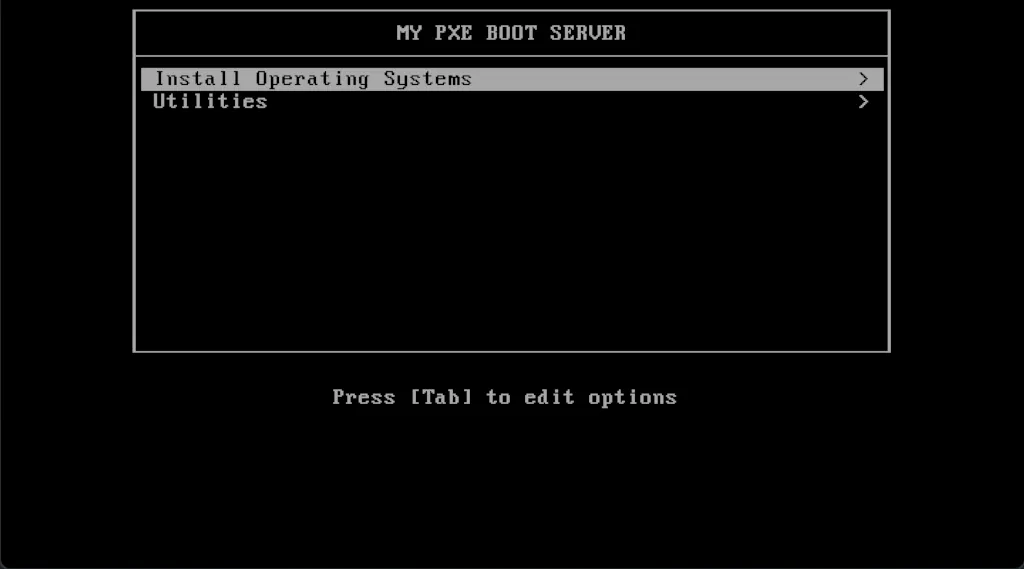
And it should look like this for UEFI/Secure Boot clients:

PXE Boot Server – The Conclusion
Setting up a PXE Boot Server on Linux provides a powerful and efficient way to deploy operating systems over a network, eliminating the need for physical installation media. By properly configuring DHCP, TFTP, and bootable images, you can streamline system provisioning, automate installations, and simplify large-scale deployments. Whether you’re managing a data center, setting up test environments, or maintaining a fleet of machines, PXE booting is an invaluable tool for any Linux system administrator.
With your PXE Boot Server now fully configured, you can expand its capabilities by integrating automation tools like Preseed for Debian-based systems or Kickstart for Red Hat-based distributions. As you continue to refine your setup, consider implementing security best practices to protect your PXE environment from unauthorized access. If you found this guide helpful, feel free to share your experience or ask questions in the comments—happy network booting!
